The gap between "this should work" and "this actually works" almost always comes down to four things: node type compatibility, IAM configuration, authentication method in Query Editor v2, and whether auto-mount has been properly activated. Miss any one of them and you'll get no useful error message explaining why.
This guide covers the exact prerequisites, the step-by-step auto-mount process, the variables that affect performance and success, and the common mistakes teams hit repeatedly.
Key Takeaways
- Only RA3/RG provisioned clusters and Redshift Serverless support
awsdatacatalogauto-mount — dc2/ds2 will not work - IAM roles need specific Glue permissions and correct trust relationships to avoid silent failures
- Auto-mount changes don't take effect until you reboot the cluster or pause and resume Serverless
awsdatacatalogis read-only; useCREATE TABLE ... AS SELECTto materialize data into Redshift storage- Query Editor v2 requires different authentication settings for provisioned clusters versus Serverless — confirm your method before connecting
What You Need Before Creating Redshift Tables from the AWS Glue Data Catalog
Every missing prerequisite breaks a different step — and most break silently. Validate these before writing a single line of SQL.
Compatible Redshift Deployment
According to AWS documentation, querying the auto-mounted awsdatacatalog database is supported only on provisioned RA3 or RG node type clusters and Amazon Redshift Serverless workgroups. DC2 and DS2 clusters are excluded — no error message will tell you this is the problem.
Regional availability also matters. The feature isn't available in every AWS Region. Rather than relying on a static list (which changes), run SHOW data_catalog_auto_mount; against your cluster — if the command itself fails, the feature isn't available in your Region.
A Populated AWS Glue Data Catalog
At least one Glue database and table must exist before Redshift can reference anything. The fastest way to populate the catalog is a Glue Crawler: point it at an S3 location, and it scans the data, infers the schema based on file format, and writes table metadata directly to the Data Catalog. Supported formats include CSV, JSON, Parquet, ORC, and Avro, among others.
If you skip this step and try to query an empty or nonexistent catalog, you'll get either an empty result or a schema error that looks like a permissions issue.
IAM Role and Trust Policy Configuration
The IAM role attached to your Redshift cluster or workgroup needs, at minimum, these Glue permissions:
glue:GetDatabaseglue:GetDatabasesglue:GetTableglue:GetTablesglue:GetPartitionsglue:SearchTables
If you're using Lake Formation (which most production setups do), also include lakeformation:GetDataAccess. The trust policy requirements depend on the role's specific purpose: for the role that registers S3 locations with Lake Formation, both glue.amazonaws.com and lakeformation.amazonaws.com need to be trusted principals.
For healthcare and financial services teams, where HIPAA and SOC 2 compliance shapes IAM design, getting this configuration right upfront is especially important — it's far easier to build access control into the initial deployment than to retrofit it later.
Correct Query Editor v2 Authentication Method
This is a frequent source of confusion:
| Deployment Type | Required Authentication |
|---|---|
| Provisioned RA3/RG cluster | Temporary credentials using your IAM identity |
| Redshift Serverless | Federated user |
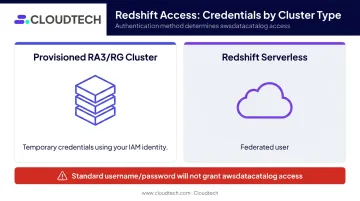
Standard username/password authentication will not grant access to awsdatacatalog. If you connect with the wrong method, the database simply won't be accessible — and the error won't say why.
How to Create Redshift Tables from the AWS Glue Data Catalog
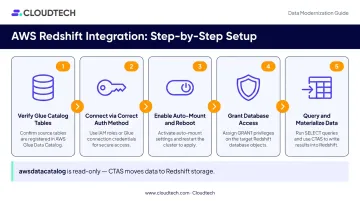
This walkthrough covers the auto-mount approach using the awsdatacatalog database — the recommended method for RA3 clusters and Redshift Serverless.
Step 1: Verify Your Glue Data Catalog Has Tables
In the AWS Glue console, navigate to Data Catalog → Databases → Tables. Confirm:
- At least one database exists with a table inside it
- The table has a valid S3 path defined
- The S3 location contains data in a supported format
- The schema columns are correctly inferred (not blank)
If a Crawler ran but the schema looks wrong, re-run it after confirming the S3 path and file format are consistent.
Step 2: Connect Using the Correct Authentication Method
Open Query Editor v2 from the Redshift console. Connect to your provisioned cluster using "Temporary credentials using your IAM identity" or to your Serverless workgroup using "Federated user."
Connect to your initial Redshift database (e.g., dev) — not awsdatacatalog. The catalog database is accessed after authentication, not used as the connection target.
Step 3: Enable Auto-Mount and Reboot
Check current status:
SHOW data_catalog_auto_mount;
If the result is off, enable it:
ALTER SYSTEM SET data_catalog_auto_mount = on;
This change does not take effect immediately. For provisioned clusters, reboot the cluster. For Serverless, pause and then resume the workgroup.
Skipping this step is one of the most common failure points: teams run the ALTER SYSTEM command, immediately try to query the catalog, and assume the feature is broken.
Step 4: Grant Access to the Catalog Database
After reboot, run the appropriate GRANT command from an admin session:
-- For an IAM user:
GRANT USAGE ON DATABASE awsdatacatalog TO "IAM:myIAMUser";

-- For an IAM role:
GRANT USAGE ON DATABASE awsdatacatalog TO "IAMR:myIAMRole";
Without this GRANT, the IAM identity will see awsdatacatalog in the database tree but every query against it will return a permission error.
Step 5: Explore the Catalog and Create the Table
Validate the metadata using three-part notation (awsdatacatalog.<glue-db>.<table>):
-- Check available schemas
SHOW SCHEMAS FROM DATABASE awsdatacatalog;

-- Check tables in a specific Glue database
SHOW TABLES FROM SCHEMA awsdatacatalog.my_glue_database;

-- Inspect columns before querying
SHOW COLUMNS FROM TABLE awsdatacatalog.my_glue_database.my_table;
If Glue database or table names contain hyphens, wrap them in double quotes.
Once the metadata looks correct, materialize the data as a native Redshift table:
CREATE TABLE dev.public.my_redshift_table AS
SELECT *
FROM awsdatacatalog.my_glue_database.my_glue_table;
This physically loads data from the S3 source into Redshift managed storage. The awsdatacatalog reference itself remains read-only — future queries against dev.public.my_redshift_table hit Redshift storage, not S3.
Key Variables That Affect Results
Glue Table Format and Compression
The engine reading S3 data under the hood is Redshift Spectrum. AWS recommends columnar formats — Parquet and ORC — because Spectrum can skip unneeded columns and process row groups or stripes in parallel. Snappy compression is supported and recommended for both formats.
Uncompressed CSV works, but AWS guidance limits CSV to small dimension tables. For large fact tables or high-volume S3 datasets, CSV will scan significantly more data and run much slower. If your Glue Crawler cataloged CSV files and performance matters, convert to Parquet before proceeding.
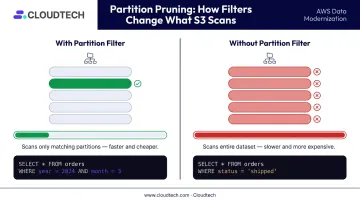
Partition Pruning
If the Glue table is partitioned (by date, region, or another column), Redshift Spectrum can skip irrelevant partitions when your SELECT includes a filter on the partition key.
-- This will prune partitions and scan only the needed data:
SELECT * FROM awsdatacatalog.my_db.sales WHERE event_date = '2024-01-15';

-- This scans everything:
SELECT * FROM awsdatacatalog.my_db.sales;
You can verify pruning behavior using Redshift's Spectrum diagnostic views, which expose total_partitions versus qualified_partitions for each query.
Cross-Account Access
Query optimization only gets you so far if the underlying permissions aren't configured correctly. When the S3 data and Glue catalog live in a different AWS account than your Redshift cluster, you have two options:
- IAM role chaining — the cluster-attached role assumes a second role in the resource-owning account
- Lake Formation cross-account sharing — grants access through the Lake Formation permissions model
Cross-account setups are a common failure point in multi-account data lake architectures. For either approach to work, three components must align across accounts simultaneously: the bucket policy, role trust relationships, and Glue catalog permissions.
Common Mistakes and Troubleshooting
Most failures fall into a predictable set of patterns:
| Mistake | Symptom | Fix |
|---|---|---|
| Incompatible node type (dc2/ds2) | No useful error; catalog not accessible | Confirm node type; migrate to RA3 or Serverless |
| Auto-mount not activated | ALTER SYSTEM runs fine but catalog fails | Reboot provisioned cluster or pause/resume Serverless |
| Wrong authentication method | awsdatacatalog not visible or query fails |
Reconnect using IAM Temporary Credentials (provisioned) or Federated User (Serverless) |
| Missing GRANT statement | Database visible but queries return permission error | Run GRANT USAGE ON DATABASE awsdatacatalog TO "IAM:username"; as admin |
| Incomplete IAM trust policy | All Glue catalog operations fail silently | Add required service principals to the role's trust policy in IAM |
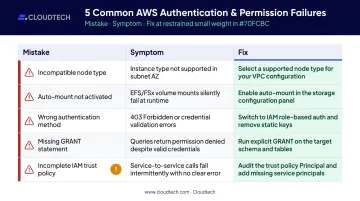
The trust policy issue is the hardest to diagnose: the failure looks identical to a permissions error, with no message indicating the trust relationship is missing. If you've confirmed GRANT statements are in place and the catalog is still inaccessible, check the role's trust policy in IAM first.
Alternatives to This Approach
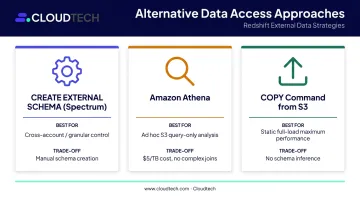
Not every team should default to auto-mounting Glue databases. Here's how the three main alternatives compare, and when each makes more sense:
| Approach | Best For | Trade-Off |
|---|---|---|
| CREATE EXTERNAL SCHEMA (Redshift Spectrum) | Granular control over which Glue databases Redshift exposes; cross-account routing | Manual schema creation per Glue database — no automatic exposure of all databases |
| Amazon Athena | Ad hoc, query-only analysis against S3 data in Glue; no Redshift cluster needed | No complex joins or heavy BI workloads; charges $5 per TB scanned (10 MB minimum per query) |
| COPY Command from S3 | Loading a static, known dataset fully into Redshift for maximum query performance | No schema inference — you must know the exact path and file structure in advance |
CREATE EXTERNAL SCHEMA (Redshift Spectrum)
The traditional method — still the right choice when you need cross-account routing or granular control over which Glue databases Redshift can see.
CREATE EXTERNAL SCHEMA local_schema
FROM DATA CATALOG
DATABASE 'glue_database'
REGION 'us-east-1'
IAM_ROLE 'arn:aws:iam::123456789012:role/RedshiftSpectrumRole';
Use this when working across AWS accounts with specific routing requirements. The downside: you'll create schemas manually for each Glue database — there's no automatic exposure of all databases the way auto-mount provides.
Amazon Athena
Best for: Query-only use cases where you don't need to materialize data into Redshift — ad hoc analysis against S3 data cataloged in Glue. Athena charges $5 per TB scanned (10 MB minimum per query).
It's not suited for complex joins or heavy BI workloads, and you lose Redshift's full SQL analytics capabilities.
COPY Command from S3
Best for: Loading a static, known dataset fully into Redshift for maximum query performance. The COPY command loads in parallel directly from S3 files into the target table.
The catch: no schema inference. You need to know the exact file path and structure upfront — something Glue Crawlers handle automatically.
Frequently Asked Questions
What does the AWS Glue Data Catalog do?
The Glue Data Catalog is a central metadata repository storing table definitions, schemas, and S3 location information. Query engines like Redshift, Athena, and EMR read that metadata to access your data in place — the data stays in S3, only the schema information lives in the catalog.
How much does the AWS Glue Data Catalog cost?
The first 1 million metadata objects stored and first 1 million requests per month are free. Above those thresholds, storage costs $1.00 per 100,000 objects per month and requests cost $1.00 per million. Check the AWS Glue pricing page for current regional rates.
How do I connect AWS Glue to Amazon Redshift?
Attach an IAM role with Glue permissions to your Redshift cluster or workgroup, enable data_catalog_auto_mount, and reboot. Then connect via Query Editor v2 using IAM-based authentication — no separate connector or plugin needed.
Can AWS Glue Crawlers crawl Amazon Redshift?
Yes. Glue Crawlers can connect to Redshift as a JDBC data source and catalog its tables into the Glue Data Catalog, making that schema metadata available to Athena, EMR, or other AWS services.
What Redshift node types support querying the AWS Glue Data Catalog?
Only RA3 and RG provisioned cluster node types and Amazon Redshift Serverless workgroups support the awsdatacatalog auto-mount feature. DC2 and DS2 node types don't support this capability.
What's the difference between CREATE EXTERNAL SCHEMA and auto-mounting?
Auto-mounting exposes all Glue databases under awsdatacatalog automatically, but only works on RA3 and Serverless deployments. CREATE EXTERNAL SCHEMA requires mapping each database manually and works across more cluster types, with finer control over which databases are exposed.
Creating Redshift tables from the Glue Data Catalog is a reliable pattern when the foundation is correct: RA3 or Serverless deployment, properly scoped IAM roles, activated auto-mount, and the right authentication method in Query Editor v2. The majority of failures trace back to one overlooked step in that list — not to the integration itself.
For teams building pipelines across Glue, Redshift, and Lake Formation, Cloudtech's AWS-certified architects cover the full setup — Glue Crawler configuration, IAM trust policies, Redshift table creation, and access control. For healthcare and financial services clients, Cloudtech builds IAM and Lake Formation configuration into the standard engagement scope. Reach out at connect@cloudtech.com or call (332) 222-7090 to scope an engagement.