The challenge is that "just move it to AWS" is not a plan. According to a 2024 IDC InfoBrief commissioned by AWS, 71% of organizations saw lower overall costs after migrating to Amazon RDS — but those outcomes depend heavily on choosing the right target service and migration method. Get it wrong, and you'll hit feature blockers mid-migration, discover unaccounted SSIS packages after cutover, or end up running a self-managed EC2 instance that costs more than what you left behind.
This guide covers the four AWS target options, what to prepare before you start, a step-by-step migration process, and the mistakes that derail otherwise well-planned migrations.
Key Takeaways
- SQL Server migrates to AWS via four paths: EC2, RDS for SQL Server, RDS Custom, or Aurora PostgreSQL with Babelfish
- AWS DMS with Full Load + CDC enables near-zero downtime migrations
- Dependency discovery (SSIS, SSRS, linked servers, Agent jobs) is the single biggest factor in migration success
- The free AWS OLA assessment can reduce SQL Server licensing costs by an average of 45%
- Never decommission the source server until at least one to two weeks post-cutover
Your SQL Server Migration Options on AWS
Choosing the right target service is the most consequential decision before any data moves. The wrong choice either over-engineers a simple workload or creates feature blockers that surface mid-migration.
SQL Server on Amazon EC2 (Rehost)
EC2 is a pure lift-and-shift: you provision a Windows Server VM, install SQL Server yourself, and retain full OS-level RDP access. This is the right choice when your database depends on:
- Linked servers connecting to non-SQL data sources
- Custom OS-level agents or drivers
- SSIS packages that run locally on the database server
- CLR assemblies or COM+ components
The trade-off is real. You own OS patching, backup management, and HA configuration. The operational overhead doesn't shrink — it just moves to AWS infrastructure. For SMBs without dedicated DBA teams, this often recreates the same burden that drove the migration in the first place.
Amazon RDS for SQL Server (Replatform)
RDS is the most common destination for SQL Server migrations. AWS manages the OS, patching, and automated backups. It supports SQL Server 2016, 2017, 2019, and 2022 in Web, Standard, Enterprise, Express, and Developer editions, with Multi-AZ for automated failover.
Key limitation: No OS or RDP access. Workloads requiring custom drivers, COM+ components, xp_cmdshell, or SSIS packages running on the database server cannot use standard RDS. If you're unsure whether your workload qualifies, that's exactly what the assessment phase is for.
Amazon RDS Custom (Replatform+)
When RDS's OS restrictions block your migration, RDS Custom bridges that gap. It provides RDS-style automation — patching, backups, monitoring — while granting OS-level access via RDP or AWS Systems Manager Session Manager.
This service is purpose-built for legacy applications with CLR assemblies, third-party agents, or specific OS configurations. If RDS is your goal but one or two legacy dependencies are standing in the way, RDS Custom is usually the answer.
Aurora PostgreSQL + Babelfish (Repurchase)
Babelfish enables Aurora PostgreSQL to accept SQL Server client connections using the TDS wire protocol, allowing applications to connect on port 1433 as if they were talking to SQL Server. The payoff is eliminating Microsoft per-core licensing entirely.
Real customer results from AWS: CDL reduced costs by 93%, FundApps reduced database costs by over 60% and saved an estimated three months of engineering effort.
What Babelfish does not support:
- xp_cmdshell, CLR assemblies, Service Broker
- SQL Server Agent, SSIS, SSRS, SSAS
- Extended properties, CHECKPOINT (currently unimplemented)
Each unsupported feature maps to an AWS-native replacement: AWS Glue handles SSIS pipelines, Amazon QuickSight replaces SSRS reports, and Amazon EventBridge covers SQL Server Agent jobs. Scope these refactoring tasks before committing to Aurora — they typically add two to six weeks depending on pipeline complexity.
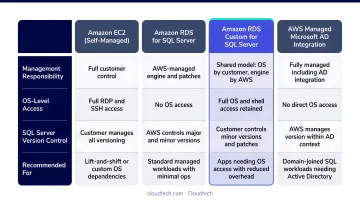
Comparing Your Four Options at a Glance
| Option | Management Level | OS Access | Best For |
|---|---|---|---|
| EC2 | Self-managed | Full RDP | Complex legacy dependencies, SSIS on-server |
| RDS for SQL Server | Fully managed | None | Most standard SQL Server workloads |
| RDS Custom | Managed + customizable | RDP / SSM | Legacy apps blocked by RDS restrictions |
| Aurora + Babelfish | Fully managed | None | Cost-driven migrations away from SQL Server licensing |
What You Need Before Migrating SQL Server to AWS
Skipping pre-migration discovery is the leading cause of surprise downtime and scope creep. A technically successful database migration can still break production applications if the surrounding dependencies weren't mapped first.
Cloudtech has seen this firsthand with SMB clients. One patient scheduling system went dark at cutover because its hidden dependency on an on-premises SQL Server reporting instance was never cataloged. Proper discovery would have caught it before a single byte moved.
Assessment and Inventory Requirements
That kind of outage is preventable. Before migration starts, catalog every:
- SQL Server instance, version, edition, database size, and growth trajectory
- SSIS package, SSRS report, and SSAS cube
- Linked server dependency — RDS supports SQL Server, Oracle, and Teradata targets, but anything else requires a workaround before cutover
- SQL Server Agent job and schedule
- Always On Availability Group configuration
- Current IOPS and throughput baseline
Run the AWS Optimization and Licensing Assessment (OLA) at this stage. It's a free AWS program that analyzes actual resource utilization, recommends rightsizing, and can identify SQL Server licensing savings — AWS reports an average 45% reduction in SQL Server license costs for Microsoft workloads assessed through OLA.
For SMBs without internal DBA bandwidth, Cloudtech's AWS-certified team runs structured discovery assessments that map every dependency and produce target service recommendations before any infrastructure is provisioned.
Infrastructure and Access Prerequisites
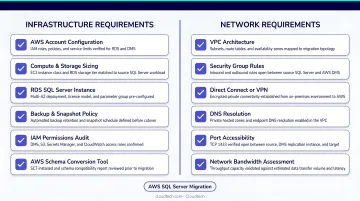
Have these in place on the AWS side before migration starts:
- Active AWS account with appropriate service limits
- VPC with public and private subnets across at least two Availability Zones
- Security Groups configured to allow port 1433 only from trusted application servers and the DMS replication instance
- DB Subnet Group created for the RDS target
- IAM roles granting DMS and RDS access to S3 buckets used for backup staging
For on-premises-to-AWS migrations, verify network bandwidth against database size. Migrating 100 TB over a 100 Mbps connection takes more than 100 days. For multi-TB databases, evaluate AWS DataSync or partner data transfer solutions as alternatives to network-only transfer.
How to Migrate SQL Server to AWS: Step-by-Step
This process covers on-premises SQL Server to Amazon RDS for SQL Server using AWS DMS — the most common migration path. Steps that differ for EC2, RDS Custom, or Aurora targets are called out inline.
Step 1: Run Your Assessment and Choose Your Target
Complete the dependency inventory above. Use the AWS OLA output to finalize instance sizing and edition. Build a decision matrix that maps each database to its target based on:
- Feature requirements (linked servers, CLR, SSIS, xp_cmdshell)
- Downtime tolerance (RTO/RPO)
- Licensing goals (License-Included vs. BYOL)
Determine whether this is a homogeneous migration (SQL Server → RDS for SQL Server — no schema conversion needed) or a heterogeneous migration (SQL Server → Aurora PostgreSQL — requires AWS SCT). That distinction drives Step 3.
Step 2: Build Your AWS Landing Zone
- Create the VPC with public and private subnets across at least two AZs
- Configure Security Groups and Network ACLs
- Create the RDS DB Subnet Group
- Provision the RDS for SQL Server instance with the correct instance class, storage type (gp3 for most workloads, io2 for high-IOPS production), and Multi-AZ enabled
Define RDS parameter groups and option groups before launch. Changing these post-deployment can trigger instance reboots that cause unexpected downtime during what should be a stable environment.
Step 3: Convert Your Schema (Heterogeneous Migrations Only)
For SQL Server → Aurora PostgreSQL migrations:
- Download and install AWS Schema Conversion Tool (SCT)
- Connect SCT to the source SQL Server and target Aurora instance
- Run the "Create Assessment Report" — it categorizes schema objects as automatic or requiring manual rewriting
- Resolve all high-complexity action items before starting data migration
High-complexity items typically involve proprietary T-SQL syntax, system stored procedures, or Babelfish-unsupported features. Resolving these post-cutover, under pressure, is the most common reason migrations stretch from days into weeks.
Step 4: Configure and Launch AWS DMS
- Provision a DMS replication instance — use c5 or r5 classes for heavy workloads (DMS loads 8 tables in parallel by default; this can be tuned for larger instances)
- Create a source endpoint pointing to the on-premises SQL Server
- Create a target endpoint for the RDS or Aurora destination
- Verify MS-CDC or transactional replication is enabled on the source database before creating the task — DMS requires this to read the transaction log for ongoing changes
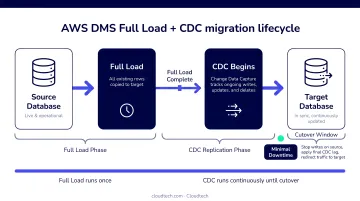
Select the task type "Migrate existing data and replicate ongoing changes" (Full Load + CDC). This loads existing data in bulk while simultaneously capturing all new transactions. Source and target stay synchronized until you're ready to cut over, with no downtime required during the bulk load phase.
Step 5: Validate Data Integrity
Once DMS shows "Load Complete, Replication Ongoing":
- Compare row counts table-by-table between source and target
- Execute critical stored procedures and trigger-dependent queries against the target
- Run your application's test suite against the new instance
- Perform load testing to confirm the new instance handles production throughput
Test RDS Multi-AZ failover by initiating a "Reboot with Failover" from the RDS console. Verify the application reconnects within your expected timeframe and confirm your RTO is met — before cutover, not after.
Step 6: Cut Over and Go Live
- Schedule a maintenance window during your lowest-traffic period
- Stop all write traffic to the source SQL Server
- Monitor the DMS console until both CDCLatencySource and CDCLatencyTarget drop to zero
- Update application connection strings to point to the new RDS or Aurora endpoint
- Monitor Amazon CloudWatch for error rates and query performance for the first 48-72 hours
Do not decommission the source server. Keep it live and accessible for at least two weeks. The cost of running the source in parallel is far less than an emergency recovery from an unexpected application failure discovered on day three.
Key Factors That Affect SQL Server Migration Outcomes
Two migrations with identical source databases can produce dramatically different results. Database size, downtime tolerance, dependency complexity, and licensing strategy each shape the outcome — address all four during planning, not after problems surface.
Database Size and Network Bandwidth
Large databases create two risks: extended migration duration and the CDC replication queue falling behind during Full Load. A 500 GB database migrating over a shared 100 Mbps connection will take far longer than expected — and may cause DMS task failures if the source transaction log isn't sized to retain changes for the full duration.
For databases larger than 1-2 TB, evaluate AWS DataSync or partner physical transfer options to load backups directly to S3, then use DMS for CDC catch-up only. This eliminates network bandwidth as a bottleneck.
Downtime Tolerance (RTO/RPO)
| Method | Downtime Required | Best For |
|---|---|---|
| DMS Full Load + CDC | Minutes to under 1 hour (cutover only) | Sub-1-hour RTO requirements |
| Native backup/restore | Full restore duration | Smaller databases, simpler requirements |
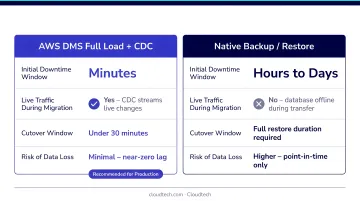
Your RPO requirement also determines post-migration architecture: sub-hour RPO needs Multi-AZ; cross-region RPO needs cross-region read replicas or backup replication.
Dependency Complexity (SSIS, SSRS, Linked Servers)
SSIS packages, SSRS reports, and linked servers to heterogeneous sources do not migrate directly to Amazon RDS. The decision on how to handle them — move to EC2, rewrite in AWS Glue, or replace with AWS-native services — affects whether your target should be RDS or EC2. Make this decision during the assessment phase.
Per AWS Prescriptive Guidance, Amazon RDS for SQL Server supports SSIS and SSRS (2016 and later) and linked servers for SQL Server, Oracle, and Teradata. It does not support:
- FILESTREAM
- xp_cmdshell
- sysadmin role
- PolyBase
- Resource Governor
Licensing Strategy (BYOL vs. License-Included)
- License-Included RDS: SQL Server license is bundled into the hourly rate — no upfront commitment, predictable billing. Well-suited for variable or uncertain workloads. Reserved Instances cut costs further: up to 30% for 1-year terms and up to 63% for 3-year All Upfront compared to On-Demand pricing.
- BYOL on EC2 Dedicated Hosts: Apply existing perpetual licenses with Software Assurance. AWS data shows BYOL on Dedicated Hosts can save approximately 55% compared to License-Included for steady-state 24/7 production workloads.
Common Mistakes to Avoid
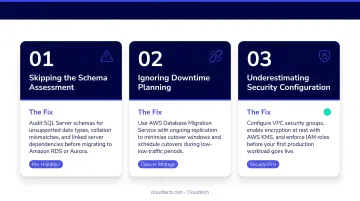
Most SQL Server migration failures stem from predictable planning errors, not AWS service limitations. Three mistakes account for the majority of post-cutover failures:
Skipping the dependency inventory. Treating the migration as a pure database move — without cataloging SSIS packages, SQL Server Agent jobs, linked servers, and application connection strings — is the most common reason a technically successful migration still breaks production post-cutover. Map every dependency before anything else.
Not enabling CDC before migration starts. DMS requires MS-CDC or transactional replication enabled on the source database to capture changes during Full Load. Teams that skip this verification will find CDC replication fails on launch, forcing a full task restart. Takes minutes to verify; hours to recover from if missed.
Cutting over without a validated rollback plan. Updating connection strings before CDCLatencyTarget reaches zero, or decommissioning the source server within hours of cutover, eliminates your safety net. Keep the source running and accessible for at least one to two weeks post-go-live.
Conclusion
Migrating SQL Server to AWS reduces operational overhead, eliminates EOL risk, and with the right licensing approach, lowers total cost. But the outcome depends on three things: choosing the correct target service for your specific dependencies, running thorough pre-migration discovery, and using AWS DMS with Full Load + CDC to minimize downtime.
For SMBs without dedicated DBA teams, Cloudtech's AWS-certified team — built largely from former AWS engineers — runs structured discovery-to-go-live engagements that reduce post-cutover risk and keep timelines tight. The assessment phase alone routinely surfaces rightsizing and licensing changes that offset the cost of the engagement.
Frequently Asked Questions
How do I migrate a SQL Server database to AWS?
Assess your environment, catalog all dependencies, and choose a target service — RDS, EC2, RDS Custom, or Aurora with Babelfish. Use AWS SCT if you're changing database engines, then use AWS DMS with Full Load + CDC to transfer data with a short cutover window rather than a full maintenance outage.
Can I run SQL Server on AWS?
Yes. SQL Server runs on AWS via Amazon EC2 (self-managed), Amazon RDS for SQL Server (fully managed), or Amazon RDS Custom (managed with OS-level access). All three support SQL Server 2016, 2017, 2019, and 2022 in Web, Standard, and Enterprise editions.
What is the best AWS service to host SQL Server?
It depends on your workload. RDS for SQL Server covers most use cases with managed patching, Multi-AZ failover, and automated backups. EC2 or RDS Custom is the right call when you need OS-level or legacy configuration access. Aurora PostgreSQL with Babelfish works best if eliminating Microsoft licensing costs is the goal.
How long does it take to migrate SQL Server to AWS?
Timeline varies by database size, dependency count, and migration method. A straightforward RDS migration for a small-to-mid-size database can complete in days, while large environments with complex dependencies typically take several weeks — often longer in the assessment and preparation phases than in the actual data transfer.
Do I need downtime to migrate SQL Server to AWS?
With AWS DMS using Full Load + CDC replication, downtime is reduced to a short cutover window — typically minutes to under an hour — for updating connection strings and final sync verification. Native backup/restore requires a full maintenance window but is simpler to execute for smaller databases where downtime is acceptable.