Introduction
Most teams know they should have audit logging enabled on their Redshift clusters. Far fewer know whether it's actually working.
The gap is real, and it shows up in three consistent ways:
- Audit log export to S3 or CloudWatch is off by default
- Query logging requires a separate parameter change most teams miss
- A misconfigured S3 bucket policy can silently break log delivery with no visible error
For data engineers, cloud architects, and IT leaders at SMBs running Redshift, that silence is the problem.
This guide covers what Redshift audit logging captures, where those logs go, how to enable each log type correctly, and how to handle the compliance and cost implications that come with it.
Key Takeaways
- Redshift logs to internal system tables automatically — exporting to S3 or CloudWatch requires manual setup
- Query logging is disabled by default and needs a separate parameter group change to activate
- System tables retain 7 days of history, which falls short of most compliance requirements
- PCI DSS v4.0.1 requires 12 months of audit log retention
- HIPAA documentation must be kept for 6 years
- CloudTrail captures API-level Redshift activity and does not replace database-level audit logging
What Is AWS Redshift Audit Logging?
Redshift audit logging is a native AWS capability that records a structured trail of who connected to the database, what changes were made to user definitions, and which SQL queries were submitted. That record gives your security and ops teams something concrete to work with — whether they're investigating a breach, satisfying a compliance audit, or chasing down a slow query.
Two-Layer Architecture
The logging system works at two levels simultaneously:
- Internal system tables (STL/SYS views): Written automatically in near real time, no configuration required. Available immediately for live investigation, but only retained for 7 days
- Exported log files (S3 or CloudWatch): Not enabled by default. Require explicit configuration. Designed for long-term storage, compliance retention, and analysis at scale
Redshift Audit Logging vs. AWS CloudTrail
These two tools are often confused, but they capture entirely different things:
| Tool | What It Captures |
|---|---|
| Redshift audit logging | SQL queries, logins, user definition changes |
| AWS CloudTrail | Cluster creation, parameter group modifications, API calls |
You need both for complete coverage. CloudTrail tells you what happened to the Redshift service. Audit logging tells you what happened inside the database.
Why Audit Logging Matters for Security and Compliance
Redshift warehouses tend to hold an organization's most sensitive data: customer records, financial transactions, health information. That makes access visibility a baseline requirement, not an optional extra.
Verizon's 2024 Data Breach Investigations Report found that credentials were involved in 31% of breaches — a strong reminder that unauthorized access often comes through legitimate-looking logins rather than external exploits.
That risk has a compliance dimension too. Several regulatory frameworks now treat audit trails not as best practice, but as a hard requirement.
Regulatory Requirements
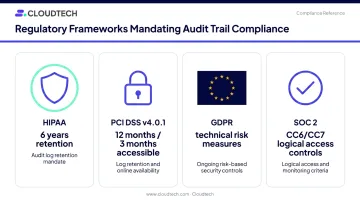
Several frameworks explicitly require audit trails for data warehouse environments:
- HIPAA (45 CFR 164.312(b)): Requires mechanisms to record and examine activity in systems containing electronic protected health information
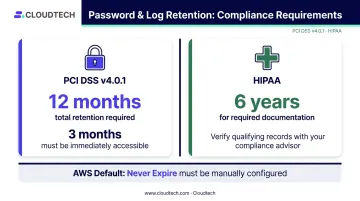
- PCI DSS v4.0.1 (Requirement 10.7.1): Mandates at least 12 months of audit log history, with the most recent 3 months immediately available
- GDPR (Article 32): Requires risk-appropriate technical measures; EDPB guidance treats unauthorized log alteration as an integrity breach
- SOC 2: CC6 and CC7 criteria address logical access controls and security monitoring
What Goes Wrong Without It
- Security teams cannot reconstruct the sequence of events after a breach
- Compliance audits fail due to missing access records
- Over-privileged users go undetected because no query history exists to review
- Privilege escalation — a superuser grant, for instance — leaves no traceable evidence
The Three Types of Redshift Audit Logs
All three log types are captured automatically in system tables. Only the export to S3 or CloudWatch requires configuration.
Connection Log
System table: STL_CONNECTION_LOG (provisioned) / SYS_CONNECTION_LOG (Serverless)
Records every authentication attempt, successful connection, and disconnection. Key fields include:
usernameandremotehost(hostname or IP)authmethodandsslversionrecordtimeand session metadata
This is your primary tool for detecting unauthorized access attempts and failed login patterns.
User Log
System table: STL_USERLOG (provisioned) / SYS_USERLOG (Serverless)
Records changes to database user definitions, including:
- User creation and deletion
- Renaming and permission alterations
- Superuser grants and revocations
Any unauthorized superuser grant will appear here — making this log essential for privilege escalation detection.
User Activity Log
Records each SQL query submitted to the database before execution. Two important caveats:
- Disabled by default. Set
enable_user_activity_logging = truein the cluster's parameter group to turn it on — enabling audit export alone does not capture this log - Storage costs add up fast. Logging every query in a busy warehouse produces high log volume. Test in staging before enabling in production
The User Activity Log also doesn't tell the full story on its own. SQL activity is split across multiple system tables:
- DDL commands (CREATE, ALTER, DROP) →
STL_DDLTEXT - Permission changes (GRANT, REVOKE) →
STL_UTILITYTEXT - Standard queries →
STL_QUERYTEXT
Reconstructing a complete activity timeline means querying all three.
How to Enable Redshift Audit Logging Step by Step
Logging to internal system tables is always on. Exporting logs to S3 or CloudWatch is a separate action that must be taken manually.
Enabling Audit Logging via the AWS Console
For provisioned clusters:
- Go to Redshift → Clusters → select your cluster
- Open the Properties tab
- Scroll to Database configurations → click Edit audit logging
- Toggle Turn on
- Select S3 or CloudWatch as your destination
- Choose which log types to export
- Click Save changes
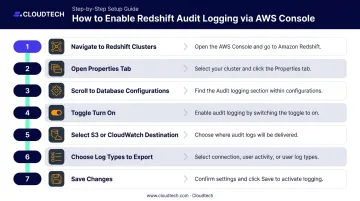
For Redshift Serverless: Navigate to Namespace configuration → Security and encryption → Edit, then select the logs to export.
Enabling User Activity (Query) Logging
This step is required on top of enabling audit export:
- From the cluster's Properties tab, click the linked Parameter group
- Go to the Parameters tab
- Find
enable_user_activity_logging - Set the value to true
- Save
AWS documentation classifies some parameter changes as requiring a cluster reboot. Whether enable_user_activity_logging is static or dynamic is not explicitly documented. Test in staging first and plan for a potential maintenance window.
Configuring S3 Bucket Permissions
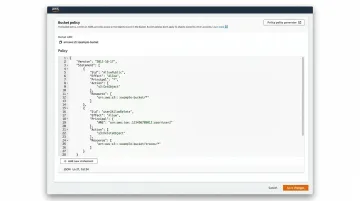
Redshift requires two specific IAM permissions on the target bucket:
s3:GetBucketAcls3:PutObject
The bucket policy should use redshift.amazonaws.com as the service principal. For opt-in regions, use the region-specific principal: redshift.ap-east-1.amazonaws.com.
S3 constraints to verify before enabling:
- Only SSE-S3 (AES-256) encryption is supported — SSE-KMS is not
- S3 Object Lock must be disabled on the destination bucket
Misconfigured bucket policies are one of the most common reasons log delivery fails silently — often with no error surfaced in the console. Validate IAM policy attachment, bucket ownership, and encryption settings before treating logging as active.
Where Logs Are Stored: S3 vs. CloudWatch
| Factor | Amazon S3 | Amazon CloudWatch |
|---|---|---|
| Best for | Long-term archival, Athena queries | Real-time analysis, alerting |
| Configuration complexity | Requires IAM bucket policy | Easier to configure |
| Redshift Serverless support | Not supported | Supported |
| Query tooling | Amazon Athena | CloudWatch Logs Insights |
| Alerts | Not native | Built-in alarm creation |
S3 log file path format:
[optional-prefix/]AWSLogs/{AccountID}/redshift/{Region}/{Year}/{Month}/{Day}/{AccountID}_redshift_{Region}_{ClusterName}_{LogType}_{Timestamp}.gz
A key prefix can organize logs from multiple clusters in a shared bucket. Understanding delivery timing matters just as much as where logs land.
Delivery Timing
System tables reflect events in near real time, while exported logs lag behind. AWS has confirmed CloudWatch delivery can occur in under 2 minutes. S3 delivery varies with cluster activity. For investigating live or recent incidents, system tables are the right starting point — not exported files.
Common S3 Delivery Failures
If logs stop appearing in S3, check for:
- Bucket policy changes that removed the Redshift service principal
- Bucket ownership transfers that invalidated existing permissions
- Deleted destination bucket with no replacement configured
AWS provides no built-in alert for broken log delivery. Set up a scheduled CloudWatch alarm or Lambda check to verify log objects are landing on the expected cadence.
Best Practices, Common Pitfalls, and Sensitive Data Risks
The Most Common Pitfall
Teams enable the connection log and user log, then assume query history is being captured. It isn't — not until enable_user_activity_logging is set to true. A related mistake: enabling S3 export but never verifying logs are actually arriving. Misconfigured bucket policies fail silently.
Sensitive Data in Log Files
Redshift logs record query text as submitted. If a query references customer names, social security numbers, or health record identifiers in a literal value or a results-processing step, that text appears in the log.
That makes the log storage location a compliance-sensitive asset requiring its own controls:
- Restrict read access to authorized roles only
- Enable server-side encryption on the S3 bucket or CloudWatch log group
- Apply a masking or anonymization pipeline before sharing logs across teams or ingesting them into analysis tools
Retention and Cost Planning
For S3 exports:
- Configure S3 lifecycle policies to transition older logs to Glacier Flexible Retrieval or Glacier Deep Archive
- Set a deletion policy aligned to your regulatory requirement — don't keep logs indefinitely without a reason
For CloudWatch exports:
- CloudWatch stores logs indefinitely by default ("Never Expire")
- Set an explicit retention period on each log group — options range from 1 day to 10 years
- Leaving retention at Never Expire will accumulate storage costs without limit
Regulatory minimums to plan around:
- PCI DSS v4.0.1: 12 months total, 3 months immediately accessible
- HIPAA: 6 years for required documentation (verify which records qualify with your compliance advisor)
Conclusion
AWS Redshift audit logging gives security and compliance teams three complementary log types — connection, user, and user activity — written automatically to system tables and exportable to S3 or CloudWatch for durable retention. The system tables are always on. Everything else requires deliberate action.
Getting it right means more than clicking "Turn on" in the console. Each layer has its own configuration step:
- Query logging requires a separate parameter group change
- S3 delivery requires a correctly scoped bucket policy
- Exported logs containing sensitive query text need dedicated access controls
- Retention must follow a lifecycle strategy tied to your regulatory requirements — not AWS defaults
For SMBs running Redshift, establishing this correctly at the start is far easier than reconstructing audit trails after a security breach or compliance audit. Cloudtech's AWS-certified team helps SMBs configure compliant Redshift environments from the ground up — covering audit logging setup, IAM policy configuration, log destination validation, and cost-efficient retention rules. The goal is a verifiable audit trail that holds up before you need it, not after.
Frequently Asked Questions
Is audit logging enabled by default in Amazon Redshift?
Logging to internal system tables (STL/SYS views) is always on and cannot be disabled. However, exporting logs to S3 or CloudWatch is off by default and must be manually enabled through the console or API. User activity (query) logging requires an additional parameter group change.
What is the difference between Redshift system tables and exported audit log files?
System tables are available immediately and useful for real-time investigation, but they only retain 7 days of history. Exported log files in S3 or CloudWatch are designed for long-term storage, compliance retention, and analysis at scale using tools like Athena or CloudWatch Logs Insights.
How do I enable user activity (query) logging in Amazon Redshift?
After turning on audit logging in the console, navigate to the cluster's parameter group, find enable_user_activity_logging, set it to true, and save. Whether a reboot is required depends on how AWS classifies the parameter, so test in staging first and budget for increased storage volume.
How long should Redshift audit logs be retained?
PCI DSS v4.0.1 requires at least 12 months (latest 3 months immediately available); HIPAA requires 6 years for medical records and associated documentation. Configure S3 lifecycle policies or CloudWatch log group retention settings to enforce your required period automatically.
What is the difference between Redshift audit logging and AWS CloudTrail?
Redshift audit logging captures in-database events — SQL queries, logins, and user definition changes. CloudTrail records AWS API calls made against the Redshift service, such as creating a cluster or modifying parameter groups. Both are needed for complete security coverage and serve different investigative purposes.
Does audit logging work differently for Amazon Redshift Serverless?
Yes. Redshift Serverless supports audit log export to CloudWatch only — S3 log file export is not supported. Connection log data is collected in SYS_CONNECTION_LOG rather than STL_CONNECTION_LOG, and configuration is found under Namespace configuration rather than the cluster properties tab used for provisioned clusters.