Introduction
Microsoft Access has served countless small businesses well — until it hasn't. The moment your database approaches its 2 GB file size ceiling, starts throwing file-locking errors with more than a handful of concurrent users, or becomes a security liability sitting on a shared network drive, the question shifts from should we migrate to how do we do it without breaking everything.
This guide is for IT managers, SMB owners, and decision-makers who've outgrown Access's hard limits and are evaluating AWS as the replacement backend. You'll find:
- Which AWS service fits your situation
- Which migration method matches your database's complexity
- A step-by-step walkthrough of the full process
- The specific pitfalls — data type mismatches, VBA dependencies, schema gaps — that trip up migration teams
Key Takeaways
- MS Access caps out at 2 GB and 255 concurrent users — constraints that signal it's time to move to a scalable platform
- AWS offers three primary migration targets: RDS for MySQL, RDS for SQL Server, and Amazon Aurora
- Three migration methods cover most scenarios: ODBC export, SSMA, and AWS DMS — matched to your database size and complexity
- Data type mismatches, VBA logic, and Access-specific queries require manual resolution before or during migration
- The split-database model lets your team keep using Access forms and reports while the backend moves to AWS RDS
Why Migrate MS Access to AWS
Access's Hard Limits
Microsoft's official Access specifications document the hard boundaries: a 2 GB maximum database size, a 255 concurrent user ceiling, and a maximum of 32,768 objects per database. These aren't soft recommendations — they're ceilings.
Beyond the numbers, shared Access databases are prone to file corruption in multi-user environments. Microsoft's own guidance recommends splitting Access databases specifically to reduce corruption risk when multiple users share a file across a network. The split-database approach reduces the risk but doesn't eliminate it — and as user counts grow, so does the exposure.
Those multi-user risks compound on the security side. Access supports password-based file encryption for .accdb files, but it's a single shared key protecting the entire file. Role-based access control, audit logging, and network-level restrictions simply aren't part of the picture.
What AWS Delivers Instead
Amazon RDS and Aurora provide what Access structurally cannot:
- Point-in-time recovery through automatic backups
- Automatic failover via Multi-AZ deployments (typically 60–120 seconds, per AWS documentation)
- Storage that scales elastically — no 2 GB ceiling
- AES-256 encryption at rest across storage, backups, snapshots, and replicas
- VPC security groups and IAM authentication for MySQL-compatible engines
- SSL/TLS encryption enforced at the connection level
- Support for thousands of concurrent connections
You Don't Have to Abandon Access
This is the misconception that stops many SMBs from starting. You don't have to rebuild your entire application.
The split-database model (Access as the front-end, AWS RDS as the back-end) is a well-supported architecture. Users continue working in their existing Access forms and reports while the data lives in RDS, accessed through ODBC-linked tables. Microsoft explicitly documents this linked-table approach for SQL Server connections, and AWS provides an ODBC driver for both Aurora and RDS MySQL.
Choosing the Right AWS Service for Your Migration
The Three Options
| AWS Service | Best For |
|---|---|
| RDS for MySQL | Moving away from the JET engine; open-source target; cost-efficient; ODBC-compatible |
| RDS for SQL Server | Maximum SQL dialect compatibility; SSMA-converted schemas; T-SQL stored procedures |
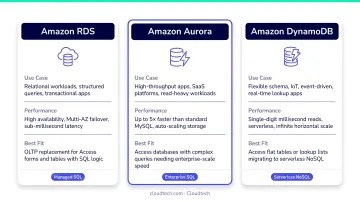
| Aurora (MySQL-compatible) | High throughput workloads; SMBs anticipating significant growth; up to 6x the performance of standard MySQL |
A Simple Decision Framework
- Database under 10 GB, non-technical team: ODBC export to RDS for MySQL is the fastest path
- Complex queries, stored procedures, or VBA dependencies: Use SSMA targeting RDS for SQL Server
- Scale and performance are the primary drivers: Evaluate Aurora MySQL-Compatible
Aurora stores six copies of your data across three Availability Zones and supports up to 15 read replicas, which matters when data access patterns are growing unpredictably. Aurora Serverless v2 also scales in 0.5 ACU increments, making it a practical fit for bursty workloads common in smaller businesses.
Cloudtech's solutions architects work with SMBs to map Access workloads to the right target service before migration begins. A structured discovery workshop surfaces technical and business requirements before any architecture decisions are made.
How to Migrate MS Access to AWS: Step-by-Step
The migration follows five phases: assess → provision → choose method → execute → validate. The right method in the execute phase depends on your database size, acceptable downtime, and schema complexity.
Step 1: Assess and Prepare Your Access Database
Before exporting anything, run a pre-migration audit:
- Add primary keys to every table that lacks one — required for AWS DMS and proper linked-table behavior
- Document or remove Attachment columns — SSMA cannot migrate these automatically
- Identify multivalued fields — these require redesign into a junction table before migration
- Back up the
.accdbor.mdbfile before making any schema changes - Run SSMA's assessment report to get a full inventory of conversion issues before you start
Skip this audit and you're likely to hit DMS task failures mid-migration or discover broken foreign key relationships only after cutover.
Step 2: Provision Your AWS Target Environment
- Create an RDS DB instance — choose MySQL or SQL Server based on your Step 1 decision
- Select your instance class based on expected concurrent connections and query load
- Enable Multi-AZ for any production workload (failover typically completes in 60–120 seconds)
- Configure your VPC and security group to allow your migration machine's IP on port 3306 (MySQL) or 1433 (SQL Server)
- Note your endpoint, port, and credentials — you'll need these in every subsequent step
If your security group is misconfigured, every connection attempt will time out silently — verify port access before moving a single row.
Step 3: Choose and Set Up Your Migration Method
Pick the approach that matches your database size and complexity, then configure it before touching any data.
ODBC Export (for straightforward table migrations):
- Install the MySQL or SQL Server ODBC driver on the Windows machine running Access
- Create a DSN pointing to your RDS endpoint
- Right-click each Access table → Export → ODBC Database
SSMA for Access (for schema + data migration with query conversion):
- Download Microsoft's free SSMA tool (version 10.5, supports Access 97 and higher)
- Connect SSMA to the Access file and the RDS/SQL Server target
- Run the assessment report, resolve flagged issues, then convert and load
- SSMA handles table schema, select queries, primary/foreign keys, indexes, and default values
AWS DMS (for large databases or ongoing replication):
- Create a DMS replication instance (T3, C5, C6i, R5, or R6i class)
- Access is not a native DMS source, so you must first stage data in SQL Server, MySQL, or Amazon S3
- Configure source and target endpoints, then run a full-load task or full-load + CDC for near-zero-downtime cutover
Step 4: Execute and Resolve Data Type Conflicts
Before running the migration, map out the data type conversions that require manual intervention:
| Access Type | SQL Server Target | Action Required |
|---|---|---|
| Yes/No | bit |
Ensure NOT NULL constraint |
| Date/Time Extended | datetime2 |
Supported mapping — verify precision |
| Multivalued fields | ntext (deprecated) |
Normalize into a junction table |
| Attachment fields | No direct equivalent | Extract files; store paths in nvarchar |
| Hyperlink | No direct equivalent | Convert to nvarchar(max) |
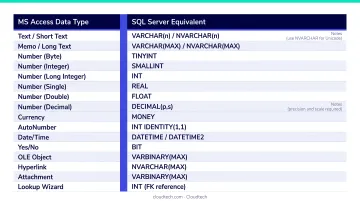
VBA functions embedded in Access queries will not convert. These need to be rewritten as stored procedures or pass-through queries on the SQL Server side. Plan this work explicitly — it's labor-intensive and easy to underestimate.
Step 5: Validate, Test, and Cut Over
Post-migration validation checklist:
- Verify row counts match between source and target for every table
- Test ODBC-linked Access forms against the new RDS tables
- Run key queries and confirm result accuracy
- Check foreign key constraint integrity
- Confirm SSL/TLS is enforced (
require_secure_transport=ONfor MySQL;rds.force_sslfor SQL Server)
When you're ready to cut over:
- Disable writes to the Access file
- Run a final incremental sync if using DMS CDC
- Redirect all application connections to the RDS endpoint
Key Factors That Affect Your Migration
Database Size
Database size determines which method is practical. Key thresholds to know:
- Under 500 MB: ODBC export typically completes in under an hour
- 500 MB–2 GB: SSMA with careful session management, or DMS with an S3 staging step
- 2 GB hard ceiling: Microsoft's documented Access file size limit — most SMB databases sit well below it and migrate quickly
Schema Complexity
Standard tables and select queries convert cleanly with SSMA. The problem objects are:
- Crosstab queries
- Parameter queries
- VBA module logic and macros
- Access forms and reports
None of these migrate automatically. They either stay in the Access front-end or require manual rework on the SQL Server side. The more of these objects your database contains, the longer your migration timeline.
Security and Network Configuration
VPC settings, security groups, IAM authentication, and SSL configuration must be correct before any data moves. IAM database authentication for MySQL-compatible RDS instances adds role-based access control with 15-minute token lifetimes, a meaningful step up from a shared Access file password.
Downtime Tolerance
- ODBC export and SSMA require read-only mode during migration — plan for scheduled downtime
- AWS DMS with CDC enables ongoing replication and a short final cutover window — the right choice for production databases where downtime is costly
Common Migration Mistakes and How to Avoid Them
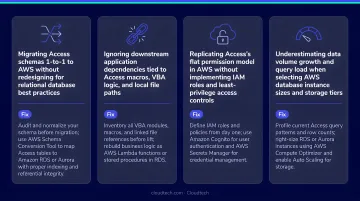
Most migration problems are predictable — and preventable. Here are the four that trip up SMB teams most often.
Assuming all Access objects migrate automatically. SSMA and ODBC tools handle tables, basic select queries, indexes, and keys. Forms, reports, macros, parameter queries, and VBA code do not convert. Plan for this gap before you start, not after.
Skipping pre-migration schema cleanup. Tables without primary keys, Attachment columns, and multivalued fields cause failures or silent data loss. Run SSMA's assessment report first. Fix what it flags.
Assuming you must stop using Access entirely. The split-database model is a supported, common architecture — Access stays as the front-end while AWS RDS holds the data. For SMB teams, this dramatically reduces change-management overhead.
Under-provisioning the RDS instance. If your Access database was running on local NVMe storage, an undersized RDS instance will feel like a regression. Enable Performance Insights during the first few weeks post-migration to observe real usage patterns and right-size from there.
Conclusion
Migrating an MS Access database to AWS is a structured, achievable process for SMBs. Target service selection, migration method, and pre-migration schema cleanup are the three variables that determine how smoothly it goes.
For SMBs that want expert guidance rather than trial and error, Cloudtech's AWS-certified solutions architects map Access workloads to the right AWS target before a single table moves — so decisions are made on evidence, not assumptions.
As an AWS Advanced Tier Partner, Cloudtech can also help qualifying businesses access AWS Partner Funding that can reduce or eliminate out-of-pocket migration costs. Engagements are scoped to deliver results in weeks, not months.
Frequently Asked Questions
How do you migrate a database to AWS?
Start by selecting a target managed service (Amazon RDS or Aurora) and a migration method — AWS DMS, SSMA, or ODBC export. Then work through a defined sequence: assess, provision, migrate, test, and cut over. The best approach depends on database size, schema complexity, and your acceptable downtime window.
Can Microsoft Access be cloud-based?
Access itself is a desktop application with no current native Microsoft cloud-hosting path — Access Services for SharePoint Online was retired in April 2018. However, the data backend can be moved to Amazon RDS while Access continues to serve as the front-end through an ODBC-linked table connection.
What is replacing MS Access?
Common replacements include Amazon RDS for MySQL, RDS for SQL Server, and Amazon Aurora. The right choice depends on scale requirements, your existing tech stack, and whether you plan to keep Access as the front-end or move to a web-based interface.
What AWS service is best for migrating from MS Access?
Amazon RDS for MySQL is the most common choice for SMBs due to cost efficiency and ODBC compatibility with Access. RDS for SQL Server is the better fit when preserving SQL dialect compatibility after SSMA conversion is a priority.
How long does it take to migrate an MS Access database to AWS?
A simple ODBC export of a small Access database can complete in under an hour. A full migration with schema conversion, testing, and cutover typically takes days to a few weeks, depending on schema complexity, database size, and available team resources.
Do I need to stop using Access after migrating to AWS?
No. Access can continue as the front-end, with forms, reports, and queries functioning normally. Your data moves from a local .accdb file to AWS RDS, accessed through ODBC-linked tables — a configuration Microsoft explicitly supports and documents.